Managing Users
The Users section lets you create, edit, and manage accounts for everyone who uses CottFile — filers, clerks, judges, and other administrators.
Accessing User Management
Navigate to Users in the Admin Panel. You'll see a list of all users with their name, email, role, assigned court, and account status.
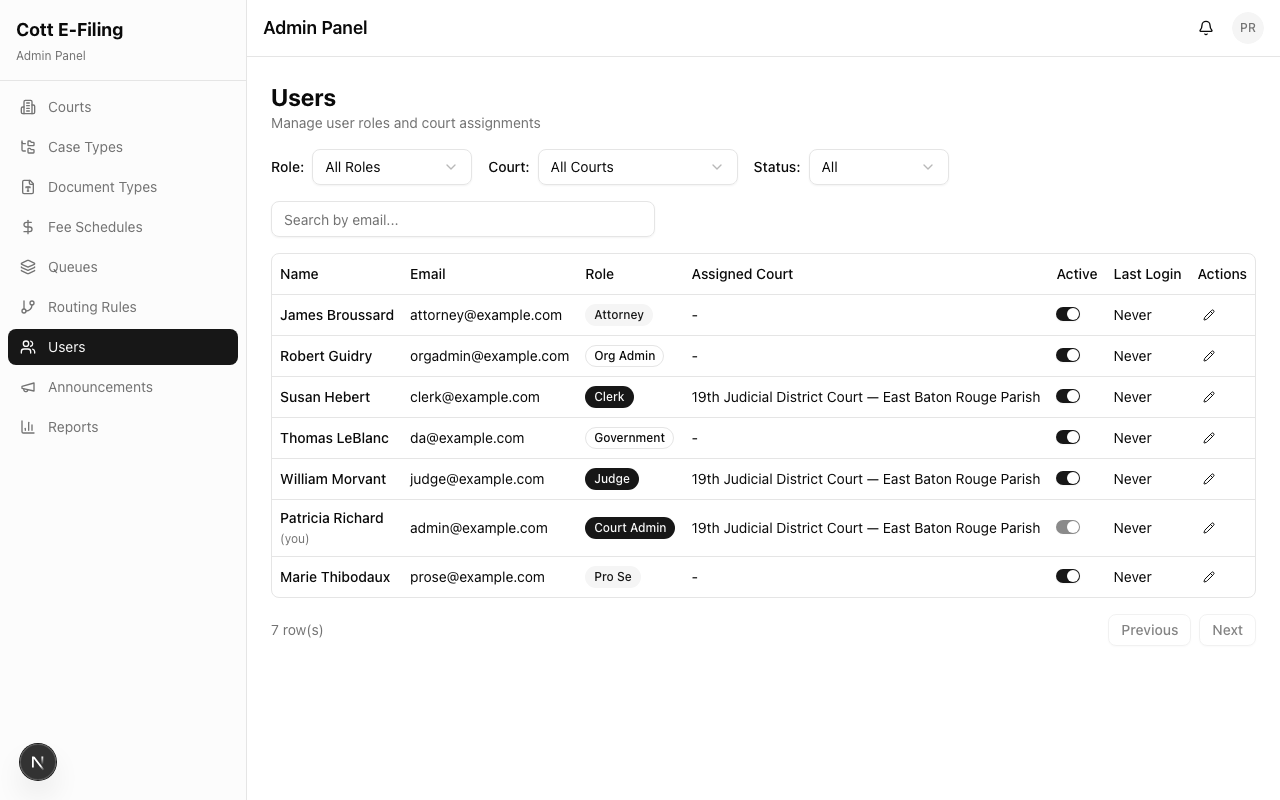
Creating a New User
- Click Add User
- Fill in the user details:
- First Name and Last Name
- Email Address — this will be their login
- Role — select the appropriate role (see table below)
- Court — for court-side roles, assign the user to their court
- Password — set an initial password for the user
- Click Create User
The user can now sign in and will be directed to the appropriate portal based on their role.
User Roles at a Glance
| Role | Portal Access | What They Can Do |
|---|---|---|
| Attorney | Filer Portal | Submit filings, track status, manage drafts |
| Pro Se | Filer Portal | Same as Attorney (self-represented litigant) |
| Org Admin | Filer Portal | Submit filings on behalf of a firm or organization |
| Government | Filer Portal | Submit filings for government agencies (DA, AG, etc.) |
| Clerk | Clerk Console | Review filings, accept/reject, manage queue items |
| Judge | Clerk Console | View filings and case information (read-focused) |
| Judicial Staff | Clerk Console | Assist judges with filing review |
| Court Admin | Admin Panel | Full configuration access for their assigned court |
Editing a User
Click on any user to update their name, contact information, role, court assignment, or account status.
Disabling vs. deleting: Disabling an account prevents the user from signing in without removing their record. This preserves the audit trail. Use this when staff members leave or when you need to temporarily suspend access.
Best Practices
- Assign users to the correct court — clerks only see filings for their assigned court on the Queue Board
- Use the most specific role — don't give clerk access to someone who only needs filer access
- Disable rather than delete — preserves the audit trail of who did what
- Review user lists periodically — especially during staff transitions or at the start of each court term