Setting Up Queues & Routing
Queues define the workflow that filings follow during clerk review. Routing rules automatically direct filings to the right queue or clerk based on conditions you define.
Understanding Queues
Think of queues as the columns on the Clerk Queue Board. Each column represents a stage in your review pipeline. Filings move from left to right as clerks process them.
A simple queue setup:
New Filings → Under Review → Accepted / Rejected
A specialized setup for high-volume courts:
Intake  →  Civil Review       →  Supervisor Review  →  Accepted
        →  Family Review      ↗                      →  Rejected
        →  Criminal Review    ↗
Creating Queues
Navigate to Queues in the Admin Panel.
- Click Add Queue
- Enter the Queue Name (e.g., "New Filings", "Under Review", "Supervisor Review")
- Set the Order — this determines the column position on the board (left to right)
- Choose the Assignment Type:
| Assignment Type | How It Works |
|---|---|
| Manual | Clerks pick up filings themselves from the queue |
| Round Robin | Filings are distributed evenly among clerks assigned to the queue |
| Rules Based | Filings are assigned based on routing rules you configure |
- Mark one queue as default — this is where new filings land when submitted
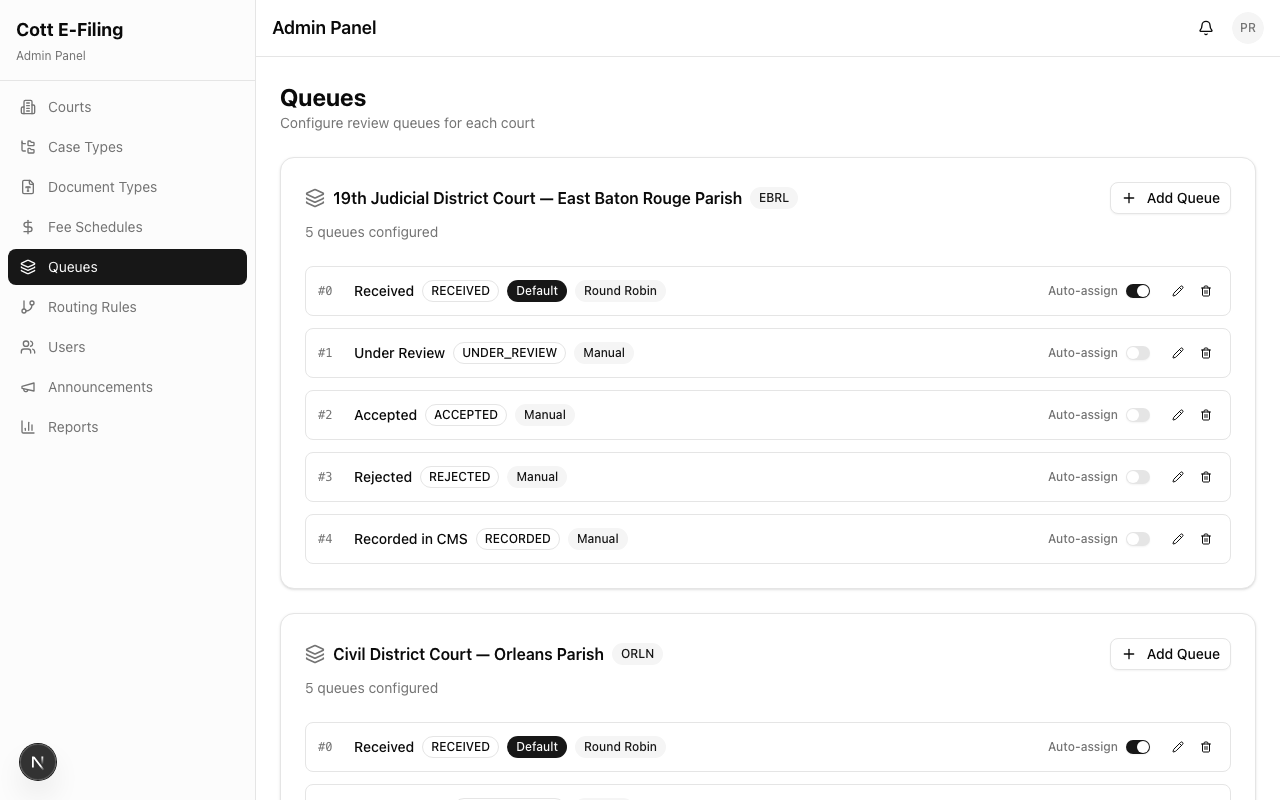
Important: You must have at least one queue, and one queue must be the default. Without a default queue, submitted filings won't appear on the Queue Board.
Routing Rules
Routing rules automatically direct filings to specific queues based on the filing's properties — useful for courts with specialized review teams or high volume.
Creating a Routing Rule
Navigate to Routing Rules in the Admin Panel.
- Click Add Routing Rule
- Select the Court this rule applies to
- Define the Conditions:
- Case Type — e.g., route all Family filings to a dedicated queue
- Document Type — e.g., route filings containing emergency motions
- Combine conditions for more specific routing
- Select the Target Queue — where matching filings should go
- Set the Priority — if multiple rules match, the highest-priority rule wins
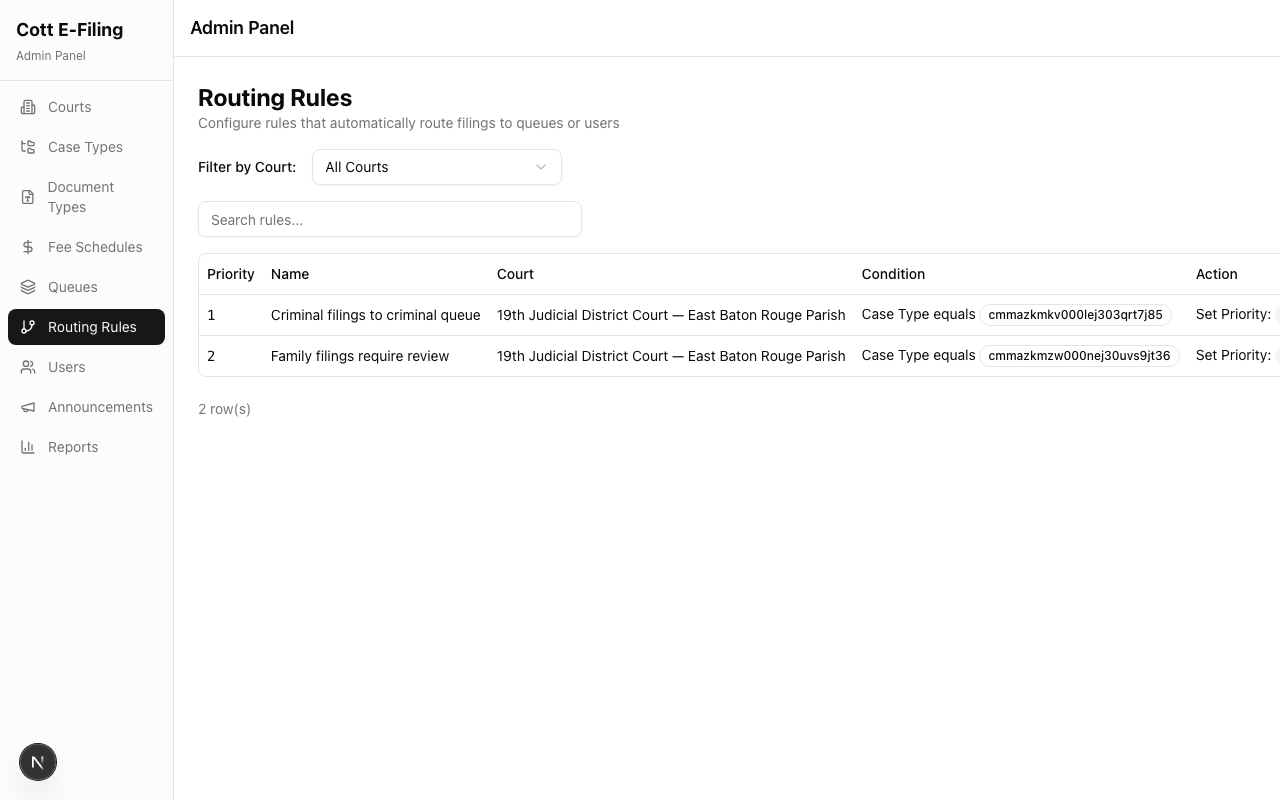
Example Routing Rules
| Condition | Target Queue | Priority |
|---|---|---|
| Case Type = Family | Family Review | High |
| Case Type = Criminal | Criminal Review | High |
| Document Type = Emergency Motion | Urgent Review | Urgent |
| (No match — default) | General Intake | Normal |
Tip: Start simple. Many courts begin with one default queue and add specialized queues only when volume justifies it. You can always add rules later without disrupting existing filings.